Manage subcontractor work and paperwork
File W-9 paperwork, review recorded bills, and see what the private work page shows—and what it cannot change.
File W-9 paperwork from the office
Owners and office staff can use this workflow to keep each subcontractor's paperwork with its record. A document listed there can also appear on that subcontractor's private work page.
- Open Subcontractors and choose Actions, then Paperwork on the subcontractor's row.
- Choose W-9, choose the file, then choose File it.Wait for the success message, then check that the file name and W-9 appear in the list.
- To replace a filed W-9, choose Remove beside it, then repeat the filing steps with the current file.Check the list after each step. Removing a file from the record does not itself file its replacement.
Review the private work page
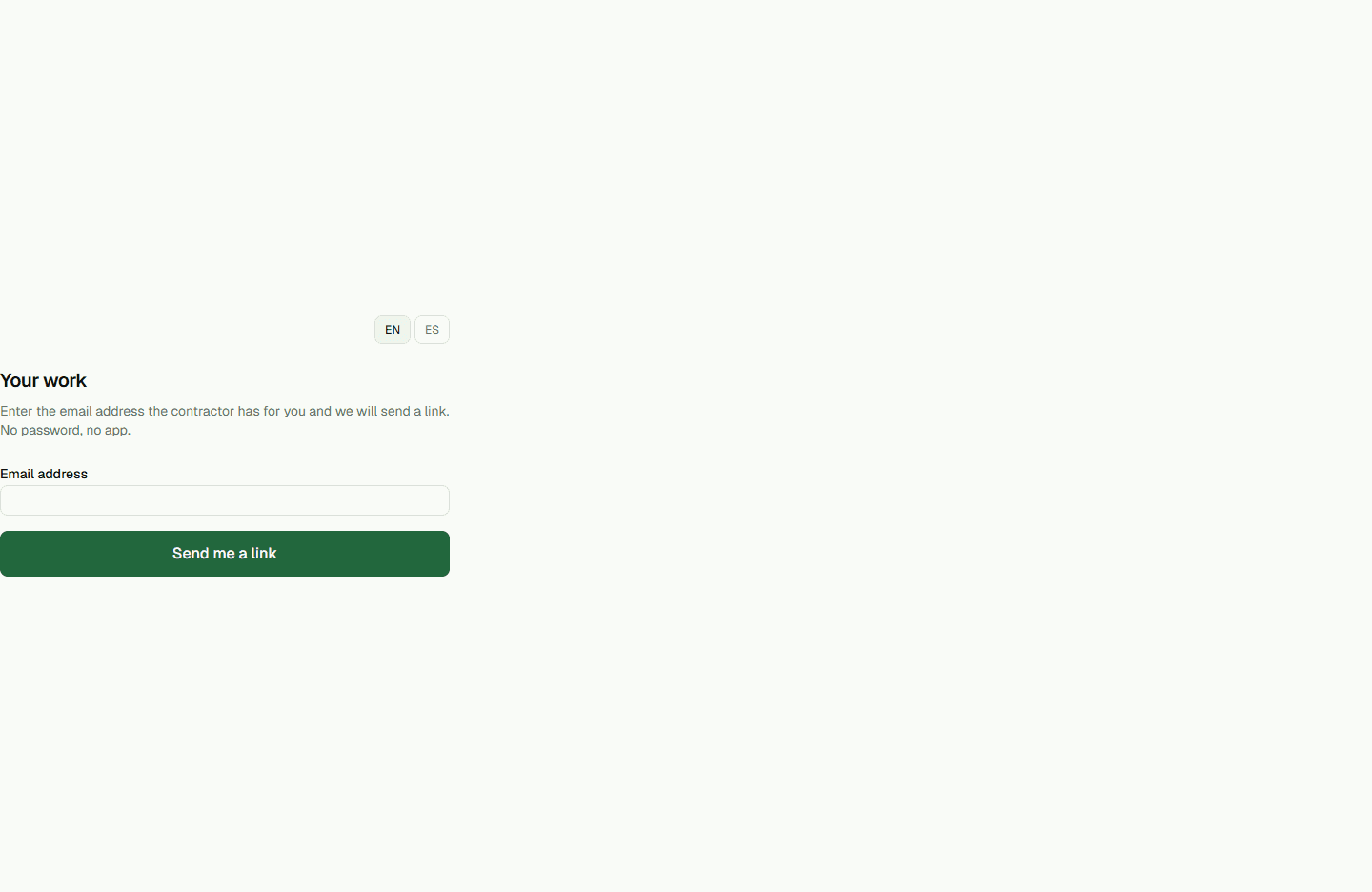
After signing in at /sub, a subcontractor can review assigned work, bills recorded by the office, and documents on file. The page shows the project, work scope and dates, bill status and amount, and filed document name and type.
The private page is read-only. It does not let a subcontractor change an assignment, mark work complete, submit a bill, or upload paperwork. Contact the contractor's office to request a correction or provide a document or bill.
Understand the bill status
A bill the office records appears on the private work page. A blank Paid on date records an unpaid bill; it does not send money. The displayed outstanding amount is a record of unpaid bills, not a payment control.
Keep the record when work history exists
When a subcontractor record has an assignment and a bill, Delete is refused so the work and cost history stays available.
- Choose Retire to keep the record and stop offering it for new assignments.
- Choose Bring back when the subcontractor should be active again.