Manage staff access and team membership
Add staff, set office and field access, and keep staff accounts separate from crew membership.
Open the Staff page
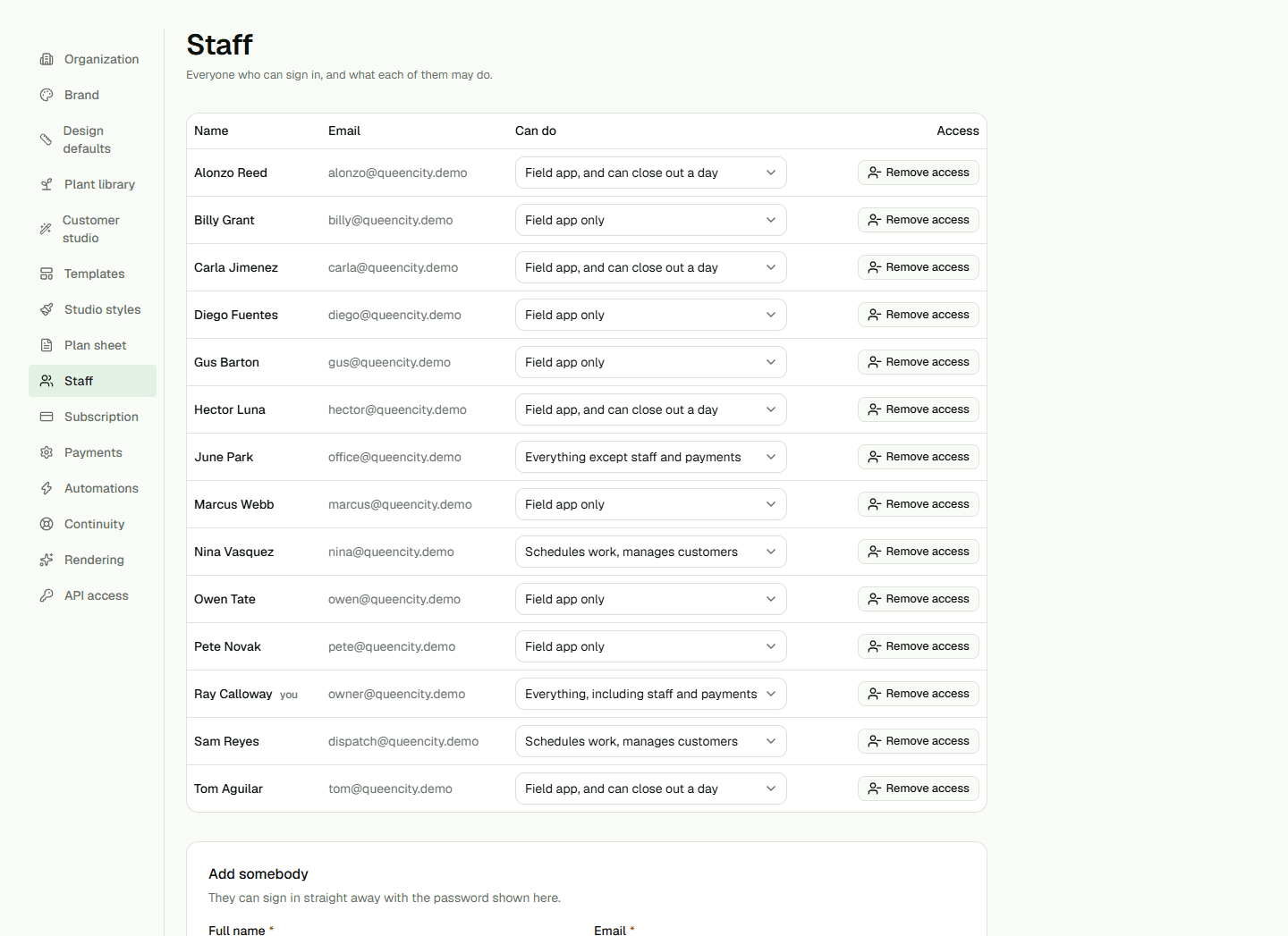
Open Setup and choose Staff. Only an Owner can open this page. The team list shows each person's name, email, access level under Can do, and whether access is active.
Add someone to the team
The Staff account and a crew roster are separate. Adding a staff member does not add that person to a crew. Read the result shown on the page before explaining how the new person will sign in; this guide does not promise that an invitation email is delivered.
- Enter the person's Full name and Email. Phone is optional.
- Choose the field-app Language and select What they can do.
- Choose Add to team, then review the on-page result.
Change access or crew membership
For an active team member, change the role in Can do and check the save message. To remove access, choose Remove access and confirm with Take it away. A person with no access has a Restore access control.
To change who rides in a truck, open Crews, edit the crew, then use Who rides in this truck and Add to crew. Removing Staff access and changing the crew roster are different actions.
Record time off and qualifications
Under Time off, choose the person, kind, first and last day, and optional note, then choose Record time off. The last day must be the same as or later than the first. To shorten a recorded period, set End early to the last day away and review the saved dates. Dispatch uses this record when it calculates crew availability; it does not move scheduled work by itself.
Under Credentials, choose Add credential beside the staff member. Type of credential is required; the credential number, License code, issue and expiry dates, and notes are optional. Review the saved row after adding or editing. The record does not verify a credential with its issuing authority or certify legal qualification. Use the exact license code that matches a crew requirement when applicable.