Send a quote and get it signed
Prepare and review a quote draft, then learn what the client sees and what is recorded when they accept it.
Prepare and review a draft
Start from Quotes or the customer's page. A quote needs a customer. Choose a property when one applies to the work; the property is optional.
- Open Quotes and choose Send a quote.
- In Who is the quote for?, search for and choose the customer, then select Continue.
- Fill in the quote and add its initial priced work.Choose the relevant property if there is one, then check the running Total before saving.
- Choose Save as draft.The saved quote opens for review and shows Draft. Saving does not send it to the customer.
Start a draft from Pipeline
From an open prospect in Pipeline, choose Quote this lead. If asked for a phone number, enter it and choose Quote this lead. The saved, unsent draft opens for review.
Start from a client's quote request
Open the quote request from the Review queue to start a prefilled quote form with that customer's details and service, plus the property when one was provided. Review the details before deciding whether to prepare a draft; opening the request does not save or send a quote.
Add work outside the price book
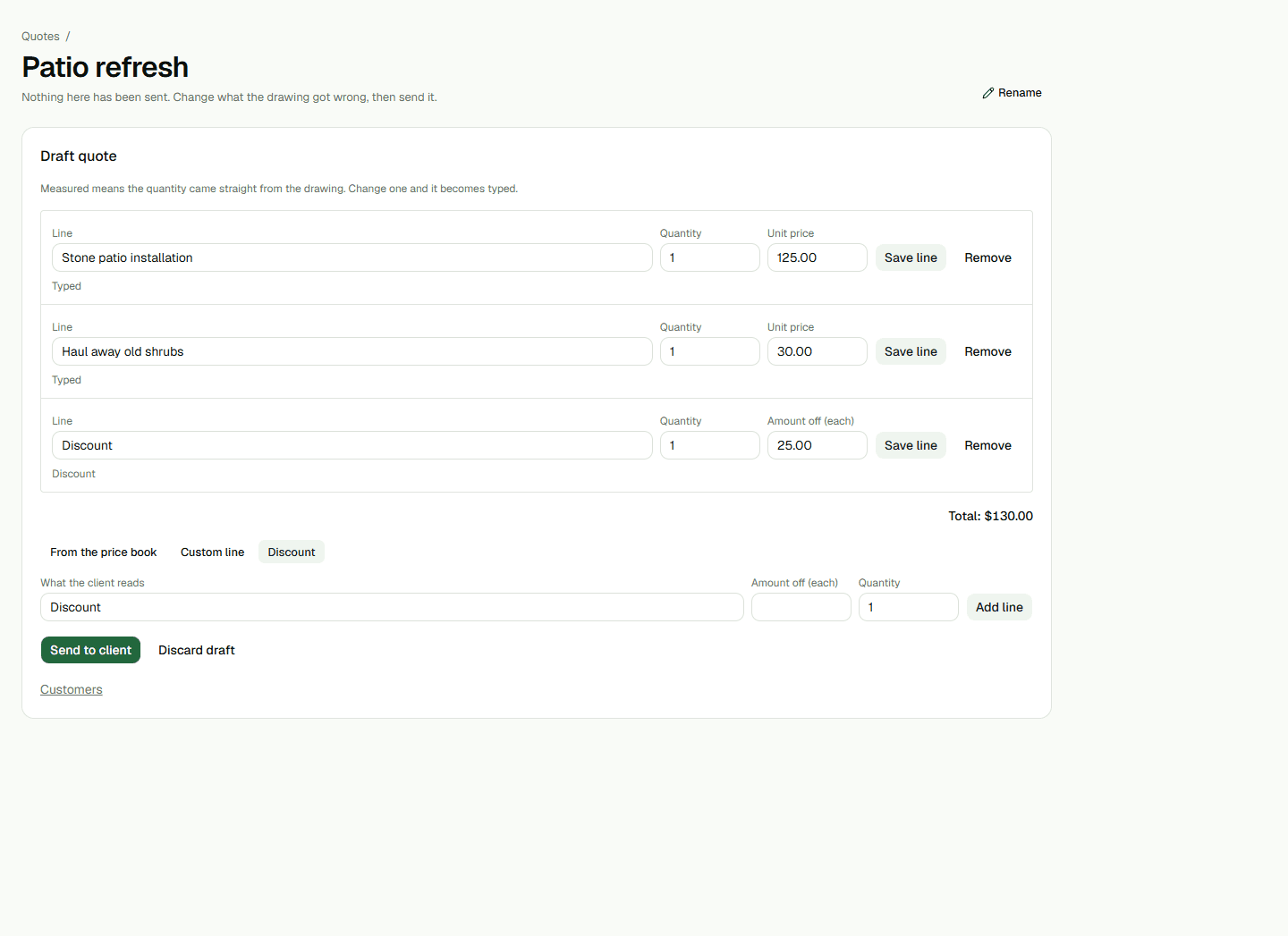
On the draft's add-line form, choose Custom line for work without a price-book item. Enter its description, quantity and price, add it, then check the updated total. Quantity starts at one; change it to the amount you intend before adding the line.
For example, a $125 line plus a $30 custom line makes a $155 draft before any discount. Example amounts only.
Apply a flat discount
Choose Discount and enter the amount to take off as a positive amount. Check the total after adding the discount.
A discount that would make the total negative is refused with “That discount would take the quote below zero.” For example, a $200 discount on a $155 total is refused and leaves the total at $155; a $25 discount leaves $130. Reduce or remove a discount that is too large and try again. Example amounts only.
Copy a sent quote for a new proposal
On a sent or expired quote without options, choose Duplicate as draft. A new draft opens with Copy of at the start of its title. Review the copied proposal before sending; duplication does not resend or change the source quote.
Duplicate as draft is available on a sent or expired quote without options. A quote with options cannot use the general duplication action. When an option quote is eligible to requote, use Requote with the original revisions or Requote with the latest designs; an open sent quote must be withdrawn first.
Start a draft from a saved Studio design
Open the saved design in Studio and choose Price. Review the measured items and quote-readiness message. When Create draft quote is available, choose it to create an unsent draft. The action stays in Studio; then open Quotes and choose the new draft to review it.
Confirm the draft status, saved design revision, options and measured lines. Reopen the same draft to confirm those details remain. Creating or reopening a draft does not send it to the customer; review the line details in the draft itself rather than relying on the summary alone.
Check the draft before sending
Reopen the draft from Quotes and confirm its title, customer, lines, total and Draft status. Check that a refused edit left the previous total intact. A saved draft is not yet a sent proposal. Use Send to client on the quote page when the reviewed proposal is ready; delivery depends on the organization's configured sending channel, and successful delivery is a separate result from saving.
For a draft created from a Studio design, review Quoted options, the saved design revision, measured lines and total. Reopen the draft to confirm these details are still there. Creating or reopening a draft does not send it to the customer.
Finding one again
Quotes lists what is out and what has gone quiet, which are the two questions an owner asks most often. Drafts can also be reopened from this list for review.
What the client sees
Not an email with a PDF stapled to it. A page in your branding, showing the price over a photograph of the property it is about, with their own original request and any pictures they sent still attached.
It lives at a stable link, because it travels — the message announcing it carries that link, and somebody may open it a week later on a different phone.
Offer design choices from Studio
To offer design choices, save two or three complete designs for the same property. In Variants, choose Make a variant of this design, enter a name, and save the new design. Price each saved design and resolve anything that blocks quoting. If a design is split into internal options A and B, clear those tags before using it as a quote choice.
Select the saved designs and choose Compare selected designs. Review their saved revisions, prices, and line changes. Enter a customer-facing name for each under Name on the quote for each design, then choose Create draft quote. In Quotes, reopen the draft and review Quoted options, each saved revision and its measured lines, and the total. The client must choose an option before accepting; the product will not assume one.
Accepting
The client types their name and accepts. What is recorded alongside it is the point — the typed name, the time, the address it came from and the browser it was signed in. That is what answers “I never agreed to that” six months later without a phone call.
A quote that has already been answered, has been withdrawn, or has run past the date you held the price to cannot be accepted. The client is told which, rather than being handed an error.
And then the work exists
Where the accepted option was priced from a drawing, signing it opens the project with the drawing and its measured quantities already attached. Nobody has to re-type the takeoff, and nobody can re-type it differently.