Bring your customer list across
Choose a quick CSV import for familiar headings or a staged import for vendor exports and related files.
Choose the import path
Owners and admins can import customers from the Import customers page. Use the quick form for one CSV with common supported headings. It has no preview: choosing Import starts adding rows, so try a small file first.
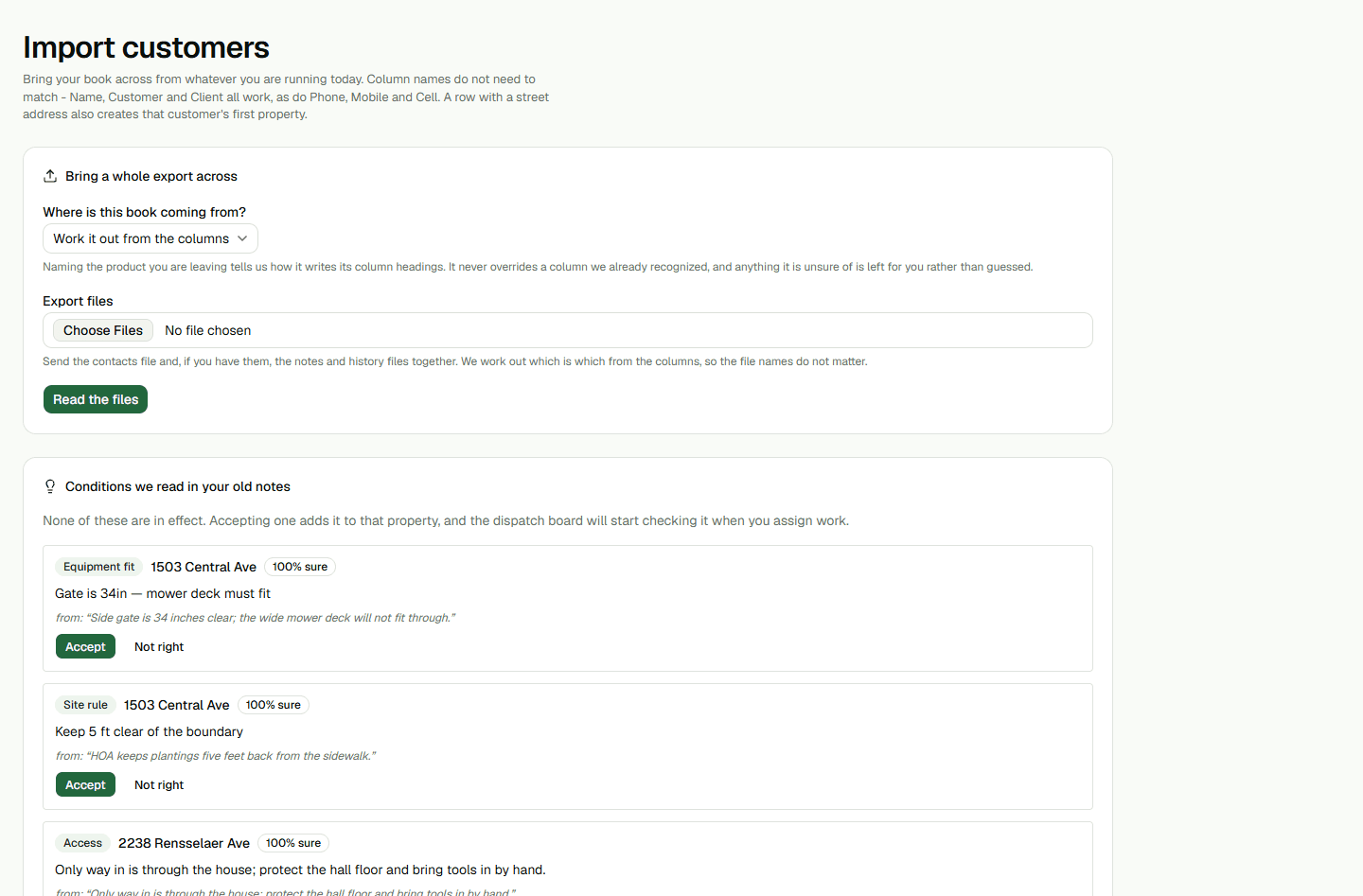
For vendor-specific headings or several related export files, use the staged import on the same page. It lets you choose a source, read the files, and review the mappings and possible duplicates before you commit the import.
- Open Customers, then choose Import from CSV.
- For a quick import, choose CSV file or paste comma-separated text under ...or paste it, then choose Import.The quick form accepts one CSV or pasted CSV text; it does not show a review step before adding rows.
- For a staged import, choose the matching source or Work it out from the columns under Where is this book coming from?, then select the files under Export files.Choose Read the files, review What we found, the mappings and possible duplicates, then choose Import these customers when they are right. You can select up to 12 files, with a combined size up to 8 MB.
Prepare customer rows
Each row needs a customer name and a phone number with an accepted number of digits. Common punctuation is fine; phone extensions are not, so put an extension in Notes. The importer checks the number's format, not whether it is active or reachable.
The quick CSV recognizes common English headings such as Name, Customer, Customer Name, Client, Full Name, First Name, Last Name, Phone, Phone Number, Mobile, Email, Address, Street, Address 1, City, State, Zip, Company, Nickname and Notes. First and last name columns are joined. For vendor-specific headings, choose the matching source in the staged import and review its mappings. An unfamiliar heading may not be saved.
Company, email, notes and address details are optional for creating the customer. A first property is created only when the row has both a street and a city. A property name such as Nickname is saved with that property, so include both address fields when you want the property created.
Review possible duplicates
In the quick form, likely matches are skipped by default and shown in the result; this path does not merge customer records. The checkbox Import rows that look like customers I already have applies to the whole submitted file, not just the rows shown as matches.
Before using that checkbox, account for every row that may already have been imported. To retry only selected rows, make a smaller CSV containing just those rows. The staged import shows possible matches for review before Import these customers; choose a disposition for each reviewed match and check the counts before committing.
Check the result
The quick import shows imported and skipped totals and up to 50 problem rows and 50 duplicate examples on the page. Review that result before leaving; it is temporary and cannot be reopened later. If you are unsure whether a customer was created, check Customers before retrying.
After a staged import commits, choose See the full report to reopen its saved batch report. That report is for the staged import path.
- Open a few imported customers and properties.Check that names, phone numbers and addresses are in the fields you expected before importing a larger file.