Save and reuse a Studio design
Draw and adjust shapes, check layers and measurements, price plants, and present or print a saved Studio design.
Save a design as a template
Use a template to start a new drawing from a saved design. After you start the design on the destination property, save it normally and reopen it to confirm its contents.
Built-in template names and descriptions follow your selected language. Custom organization template names and descriptions remain as entered.
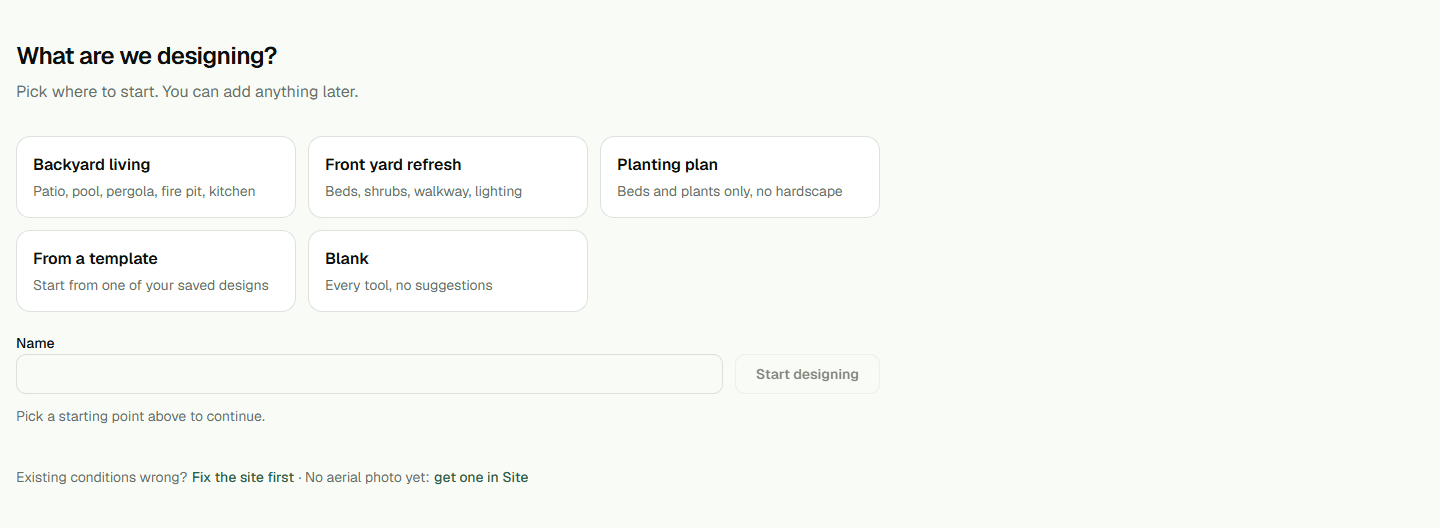
- Open an editable design in Studio, select its name, and choose Save as a template…
- Enter a name for the template and choose Save.
- On the destination property, choose New design…, select the saved template, and start the design.
- Save the new design, then reopen it to confirm its contents.
Copy a design to another property
Copy creates and saves a new design on the destination property. The source property remains unchanged, and you do not need to choose Save separately for the copy.
- Open the saved source design, select its name, and choose Copy to another property…
- Review the selected shapes, choose the destination under Property, and enter a name under Name the new design.
- Choose Copy to property, then open the new design to confirm the copied shapes.
Draw a shape on the right layer
In Design, open Surfaces and choose a shape. The active layer decides whether you are recording what is there or drawing proposed work. Before you place a shape, check Layers and choose the layer that matches its purpose.
For a shape with corners, click each point, then press Enter or double-click to finish. Rectangles are dragged out; you can also type a size such as 20 x 16 above the plan.
- Open Design, choose Surfaces, and select a shape.
- Check Layers, then click the plan to place the corners; press Enter or double-click to finish.
Measure without changing the drawing
Choose Measure on the Design toolbar, or open More and choose Measure on a narrow toolbar. Click two points to read a distance; click a third point to add an area reading. Press Esc to clear the temporary tape. The tape is a visual guide, not a saved or priced item.
To keep a note in the drawing, choose Note, place its marker, select it in the outline, and enter its label in the inspector. Save the drawing to keep the note. A note is not a measured or priced quote item.
- Choose Measure, click the points you want to check, then press Esc to clear the tape.
- Choose Note to add a saved marker, name it in the inspector, and Save the drawing.
Adjust a shape's sides
Select a saved shape, open Sides, and enter a length in Side 1 using decimal feet; for example, 18 means 18 feet. Press Enter to apply the edit. While the field is focused, it shows the value you typed; after you leave the field, it shows one decimal place. The plan readout shows the measurement in feet and inches.
When Studio accepts the change, choose Save and wait for Saved. Reopen the same design to confirm the edited side. Shape constraints may refuse a value; read Studio's message and do not assume a refused edit was applied.
If you press Enter with a blank entry, a value that is not a number, or a value outside the allowed range, Studio shows a message beside that side. Correct the value and press Enter to continue.
Design options and layers
For a proposed shape, Both includes it in alternatives A and B; A or B includes it only in that alternative. The option buttons appear on shapes in the Proposed layer.
To move a shape into Existing conditions, choose that layer. If it is locked, Studio refuses the move and offers “Unlock Existing conditions and do it.” Choosing it unlocks the layer and moves the shape. Undo reverses the design change, but the lock setting is separate. In Layers, the Existing conditions lock control is shown while that category contains a shape.
Only shapes on a proposed layer are priced; shapes on Existing conditions do not add to proposed-work pricing.
Find and select shapes
In “In this design,” use “Find an element” to filter shapes by their name or displayed type. Search using the type name shown in the list, including its translated name. Click a row to select that shape. Hold Ctrl while clicking another row to add it to the selection; repeat on a selected row to remove it. If no shapes match, clear the search. Clearing the search keeps the selection.
Select two shapes, then choose Modify > Align > Right to line up their right edges. Review the result before saving. Choose Undo once to restore the previous drawing.
Fill a planting bed
Select a planting bed and choose “Fill with plants…” to open the planting panel. Choose a plant, enter a positive spacing, select a layout and size, and review the preview count before selecting Fill. Filling adds the plants as one group but leaves the design unsaved. Expand the group in the outline to see its plants. Save the design to keep the change, or use Undo once immediately after Fill to reverse the fill.
Review aerial imagery before you trace
Open Site, then Imagery, to review whether dated aerial imagery is stored for the property. The panel shows the flight date and resolution.
When no dated image is stored, tracing is off. Undated imagery is never shown as current.
Choose Fetch aerial imagery or Re-fetch only when the panel offers that action, then confirm the recorded flight details before tracing.
- Open Site and choose Imagery.
- Review the flight date and resolution before tracing.
Present and walk through a design
Save the drawing first. From Design, open the Present workspace. In its toolbar, choose Present to switch to a read-only view. Choose Back to editing or press Esc to return. Choose Walk through to open the three-dimensional view when available; the screen explains when the device cannot run that view.
- Save the drawing and wait for Saved.
- Choose Present, then choose Walk through when it is available.
- Choose Back to editing or press Esc to return.
Open and download a plan sheet
From Present, choose Plan sheet. The sheet uses the saved revision, so save first if you want recent edits included. Choose a trade sheet or the full set, then download the PDF. Read the conceptual-design notice before sharing or printing; the sheet is not a construction, grading, drainage, or permitting document.
- Save the drawing, open Present, and choose Plan sheet.
- Choose the sheet you need and download its PDF.