Create a customer and attach a property
Add a customer, then create a separate property record with its own service address.
Create the customer record
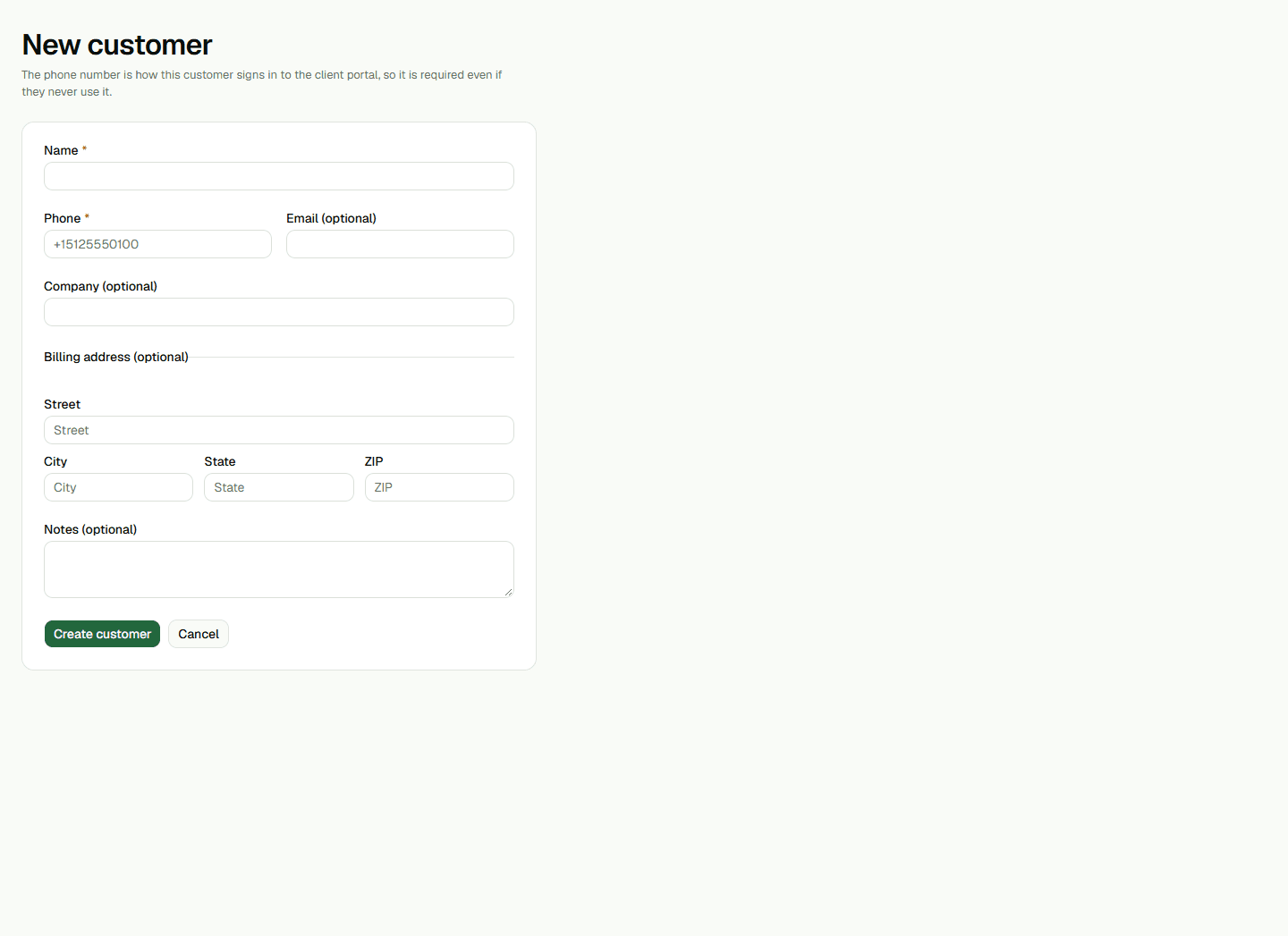
In Customers, choose New customer. Enter the required name and phone number; email, company, billing address, and notes are optional. The phone number is also how a customer can request a portal sign-in link. Choose Create customer and review the result before continuing.
Add the property's service address
From the customer record, choose New property. Select the customer you just created. A nickname is optional; enter the required street address, city, state, and ZIP. A customer's billing address is separate from the property's street address.
When the map is available, compare its resolved address with the property. If it does not match or the map cannot load, stop and confirm the location before saving. Do not guess at a pin location.
Confirm the relationship
After saving, check that the property page shows the expected nickname and address and that it belongs to the intended customer. A possible-duplicate warning should be reviewed before choosing to create another record.