How the week board works
Rows are crews, columns are days. You assign the work, and the board tells you what it thinks is wrong with it.
One screen
Dispatch shows a row for each crew and a column for each workday currently shown. Select Show Sunday to include Sunday; when it is hidden, the control indicates whether Sunday has hidden visits. The Unassigned row shows visits on their scheduled day until they have a crew. The separate To place tray lists visits waiting for placement.
To add a one-off from Dispatch, open +, choose its property, work and day, then select Put it on the board. You can also enter a price, notes and Office instructions. The visit appears under To place; this quick form does not assign a crew.
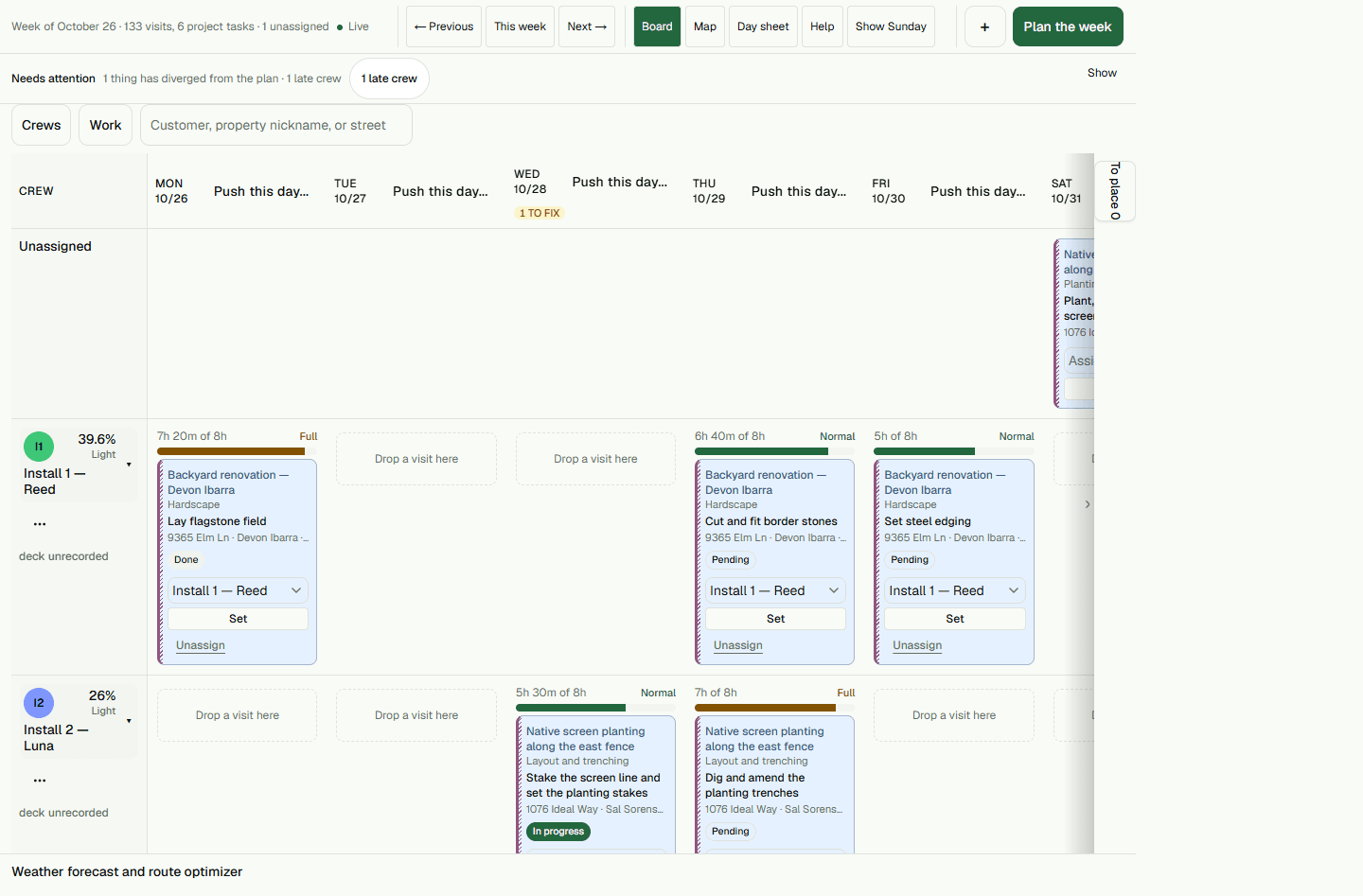
Nothing moves on its own
The board does not quietly reorganize your week. You assign, and it objects: a deck too wide for the gate, a service needing a license this crew does not hold, an access window you have just booked outside of, a day that has become longer than a day. The objection is on the card, in words, with its reason.
That is the deliberate trade. A system that reshuffles the week overnight is one you stop trusting the first time it moves something you had a reason for.
When a crew-out plan (Crew actions, then Crew is out...) shows a stop under Needs your call, that stop is not among the proposed moves and stays assigned to its current crew. Discarding the plan leaves that assignment unchanged. Review the crew options and any warnings in the Inspector; a same-day reassignment there changes the crew but keeps the scheduled visit date and customer promise dates.
Planning a week in one go
Choose Plan the week to create a draft for the week shown. Review its proposed crew and day moves in the preview; the board does not change yet. Select the moves you want, then choose Apply N moves; the button shows how many are ticked. Leave unwanted moves unchecked, or choose Discard this plan to close the draft without applying it. Apply changes only selected moves that are still eligible.
After Apply, reload the board and open Day sheet for a date you want to prepare. It lists that day's stops under each crew in route order and keeps unassigned work in its own section. Applying a plan changes the board; it does not send customer messages.
Weather
The forecast sits beside the board, and a day that is going to be unworkable can be shifted with its whole load rather than card by card. What moved and why is recorded, so on Friday you can still answer why the Hendersons’ was done late.
Weather changes start as a proposal. On a day, choose Push this day..., pick From day, Through day and the Work to move, then choose Show the plan. Review the moves in the preview, then choose Apply N moves to change the schedule. The app opens notice review. Nothing is sent automatically. Skip on an individual notice takes effect immediately; Skip all asks for confirmation. Skipping a notice leaves the schedule change in place.
Route suggestions
Open Weather forecast and route optimizer, choose a Crew and Date, then select Get route suggestion. Review the suggested stop order. If it says No time saved with a different order, select Dismiss to close without changing the route. To use a suggested order, select Apply. Reload the board and open Day sheet for that date to check the order.
Routes in a day
Your plan sets how many routes may run on one day. The board warns you as you approach that limit rather than refusing a drag at the worst possible moment, and once your plan is active, Setup, then Subscription, shows the limit and what you are using against it.
Seeing a day as a map
Any day can be shown as a map instead of a list. It is the fastest way to spot the stop that is forty minutes away from the other nine.